Choose the browser identity, inspect state, and make handoffs explicit
BrowserAct Skills
Browser tasks with a traceable session
Connect local browser work to a coding assistant: read and act on page state, distinguish login identities from task sessions, and hand personal verification to a human. The repository also contains Skill Forge and a catalog of site-specific solutions.
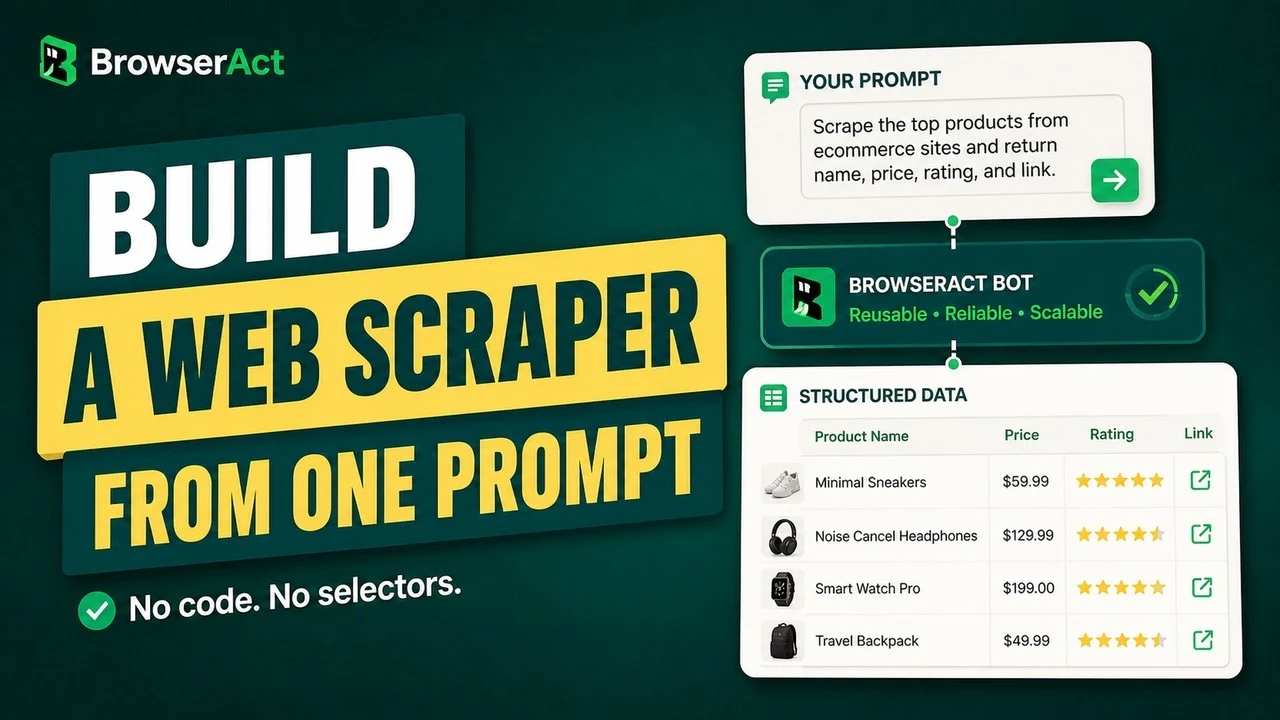
Build a scraper from one prompt
View example sourceWorking environment
- An assistant that reads Skills and runs shell commands
- Local Chrome / Chromium
- A separate BrowserAct account when required
- GitHub stars
- 6,300
- Version
- 2.0.2
- Checked
- Categories
- EngineeringMarketing & GrowthOther
Start with one read-only Chrome session
Confirm Skill discovery, a real browser ID, page reading, and closing your own session. Add login reuse, pagination, or human assistance only after that path works, checking the actual result at each step.
Pick a task and get started
Send the setup request below to your chosen assistant to prepare both the entry and CLI. Then run the first read-only exercise, using the complete get-skills response for the actual installed commands.
Use example.com from the author’s quick start to discover the environment, read a page, and close the session.
Have the assistant install the entry and separate CLI
Send this request to the assistant; it is not a shell command. Prepare both the entry directory and separate CLI, with uv and Python 3.12 available. The pinned link preserves reviewed Skill 2.0.2; the uv command retrieves the CLI available at installation time. Check compatibility through get-skills afterward.
Read the author’s setup guideAdd the browser-act entry Skill from https://github.com/browser-act/skills/tree/11c057b03f92101642cadc9f840564574120d184/browser-act to the Skill directory used by this client. Read the author’s installation guide. If the separate CLI is missing, install it with uv tool install browser-act-cli --python 3.12. Preserve an existing working setup. Verify browser-act --version, activate the installed Skill, and read browser-act get-skills core --skill-version 2.0.2 in full. Report the Skill path, CLI version, and missing requirements; browser creation belongs to the first task.Read the runtime guide before choosing a browser
Use browser-act --version during installation verification, then activate the entry and read the command below in full. Check browser type, purpose, actual ID, and current sessions. Load get-skills advanced when Profile, proxy, or privacy settings are relevant. The ordinary first exercise needs no account or imported login.
Read the two-layer Skill and version workflowbrowser-act get-skills core --skill-version 2.0.2Give your AI this first task
These tasks and the text illustration are editorial examples based on author documentation, not observed runs. Replace bracketed or angle-bracket inputs and keep observed results separate from checks still required.
Use the installed browser-act Skill. Read the complete output of browser-act get-skills core --skill-version 2.0.2, including CLI version, entry version, browsers, and active sessions. If the versions are incompatible or requirements are missing, report what needs attention; a command written in a report is not evidence that it ran. Read only https://example.com. Select an ordinary chrome browser intended for public-page work and verify its actual ID and purpose. If none is suitable, follow the current get-skills instructions and confirmation process to create a clean chrome environment. Do not import a personal Profile, attach through chrome-direct, configure a proxy, or sign in to a service. Create a unique session name for this task. Open the page with browser-act --session <task-session> browser open <actual-browser-id> https://example.com, then run state, get title, and get markdown in that session. Replace the angle-bracket values rather than copying example IDs. Confirm the returned URL, title, and body belong to the requested page, and record visible outbound links. No clicks or form submissions are needed. Write browseract-first-run.md with actual versions, browser type, URL, title, a short content summary, observed links, and errors. Close your session with browser-act session close <task-session> and check session list. Preserve browser configuration and other tasks’ sessions. Mark any unfinished check as unverified.
Check what you receive
- An actual page-reading record with environment details and a source URL.
- Observed results for reading and closing, rather than expected page text presented as a visit.
- Only the task’s named session is used and closed; existing browsers and other work remain intact.
More about this skill
The local browser-act Skill is a discovery entry rather than the complete operating manual. After loading browser-act/SKILL.md, the assistant requests get-skills core for instructions matched to the installed CLI, plus environment information, browsers, and sessions. Copying the entry file alone does not provide a running browser.
The basic loop is to open a named session, inspect state, act on the current element indices, and inspect state again. Indices can expire when the page changes. Extracted text also needs to be organized and checked; a successful command does not establish that every row in a dataset is correct.
A browser holds an identity and login environment; a session represents a task. Multiple sessions on one browser still share cookies and authentication. Profile import is a snapshot, while chrome-direct controls the actual local Chrome. These distinctions matter when keeping an account-specific report consistent.
When personal verification is required, remote-assist can return a handoff link. Inspect the page again after the human finishes before resuming. The separate Skill Forge entry generates SKILL.md and scripts for repeated site work, while solutions supplies site-specific packages. Each needs its own setup, and managed cloud Bots are a separate product path.
Sources and verification
Sources checked
Full reads cover both pinned entry Skills, README, license, requirements, all docs pages, and the Solutions catalog. Official pricing text and selected PyPI release fields were also checked. The 101 solution bodies were not reviewed, and no CLI installation, runtime Skill discovery, browser launch, or collection was performed.