agent-browser
Inspect the page, act, and verify
Give an assistant page snapshots and element references for collecting information, testing forms, comparing screenshots, and resuming authenticated work.
Hosts listed by the author
- Claude Code
- Codex
- Cursor
- Gemini CLI
- GitHub Copilot
- OpenCode
- Windsurf
- Goose
- GitHub stars
- 44,874
- Version
- 0.41.0
- Checked
- Categories
- EngineeringProduct & Project
Begin with one public page
Choose a small page that needs no login and define the fields you want. Read it in a task-specific session, retain evidence, and spot-check the inventory before testing submissions or reusing authentication.
Pick a task and get started
Complete installation and first-use setup, then give the assistant brief.md and one prompt. Replace SESSION_ID, URLs, and page markers. The assistant or shell saves reports and responses; the CLI does not automatically author the whole deliverable.
Extract a defined set of fields and links from the rendered page.
Install the CLI, Chrome, and skill entry
The CLI is pinned to 0.41.0. npm installs it globally, the second command downloads Chrome, and the third selects a host and installs the discovery entry. Load the installed version’s workflow with skills get core; the relevant release and repository paths were compared.
Read the author’s setup guidenpm install -g [email protected] agent-browser install npx skills add vercel-labs/agent-browserFirst use: install, load the guide, choose a session
Run the three installation commands in a terminal; in the skills installer, select your assistant and installation location. Verify 0.41.0 with agent-browser --version, then ask the assistant to run agent-browser skills get core. Create brief.md with a public URL, three to five fields, a visible readiness marker, and a page limit. Choose a SESSION_ID unused by another task, using letters, digits, hyphens, or underscores. Include the same --session on every browser command. Create this task’s evidence/ directory, follow the first prompt, check its inventory, and close that session.
Author’s installation and host setupGive your AI this first task
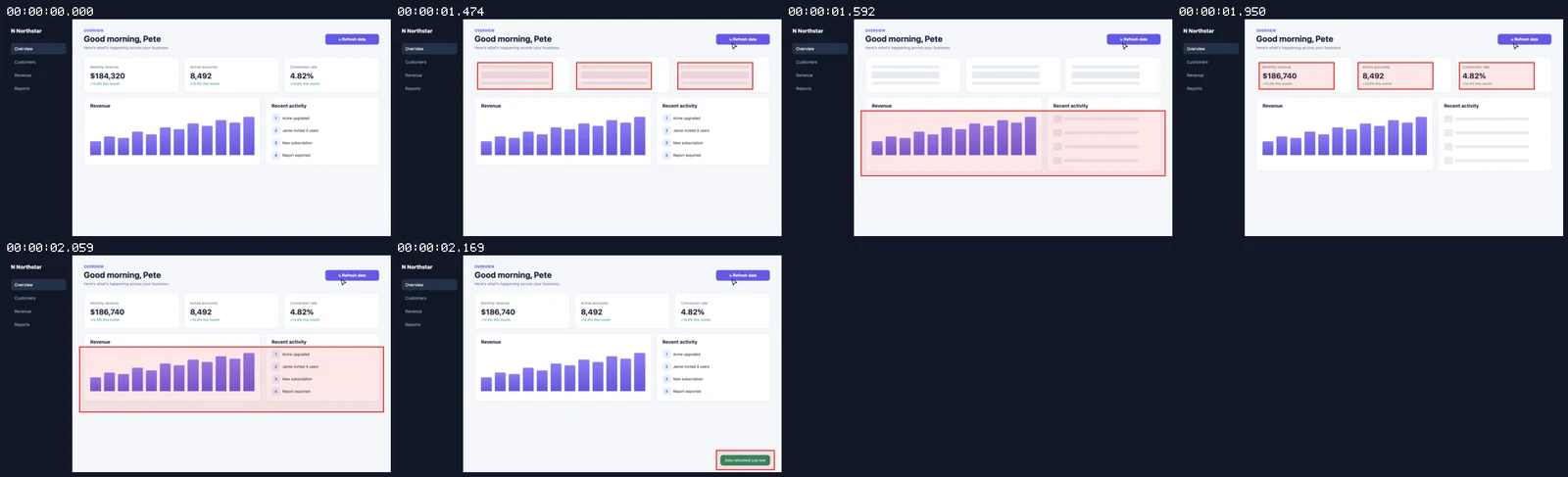
The prompts and three-panel example are editorial instructions, not site tests we ran or results reported by the author.
Use agent-browser. First run agent-browser skills get core, then read its returned workflow and brief.md in full. Replace SESSION_ID with a name unique to this task and URL with the target. Open it with agent-browser --session SESSION_ID --headed false --idle-timeout 10m open URL. Do not log in or submit forms. Wait for the actual text or selector in the brief, for example agent-browser --session SESSION_ID wait --text "READY_TEXT" after replacing the marker. Run agent-browser --session SESSION_ID snapshot -i --urls --json and save the response as evidence/page.snapshot.json, checking whether the command succeeded. Use get title, get url, and get text body in the same session to retain the title, actual URL, and body text; save the body as evidence/body.txt. The -i snapshot contains interactive elements, not the full page. Read an individual link’s href through a reference from the current snapshot when needed. Produce items.csv and coverage.md with the requested fields, source URLs, retrieval time, and pagination or scroll coverage. Follow further pages only within the brief’s scope and take a fresh snapshot after page changes. Leave missing fields empty; do not infer unseen content or describe one page or scroll window as the whole site. Check at least three records against their text and links, or every record if fewer. If visual evidence is needed, ensure evidence/ exists, run agent-browser --session SESSION_ID screenshot --annotate ./evidence/page.png, and inspect the image. Report coverage and missing fields. On completion or failure, run agent-browser --session SESSION_ID close, closing only this task’s session.
Check what you receive
- An inventory with source links and missing fields.
- Original page evidence and explicit coverage.
- Spot checks, with an inspected screenshot when needed.
More about this skill
agent-browser is Vercel Labs’ browser CLI; its skill teaches an assistant how to operate it. npx skills add installs a discovery entry. Before browser work, agent-browser skills get core retrieves the workflow shipped with the installed package. The CLI executes actions, while the skill organizes observation, interaction, waiting, and verification.
The central loop is to open a page, wait for meaningful content, inspect a snapshot, and interact through references such as @e1. After a click or navigation, inspect the resulting page before continuing. Text snapshots describe controls; annotated screenshots add visual context. Neither establishes that the business task succeeded.
The four paths below produce different evidence: a public-page inventory, form test records, a visual comparison, and a read-only report after restoring a test account. They share the same observation loop but use different inputs and checks. These examples primarily use local Chrome.
Sources and verification
Sources checked
The selected paths were checked against commit 099e84e and the v0.41.0 release tree. No CLI installation, browser launch, login, or submission was performed.