Orange Line Illustration
Turn an Idea into an Action
Use thin black lines, white space and warm orange to turn one claim into a readable action, then carry the same visual language through covers and HTML presentations.
 Open original image
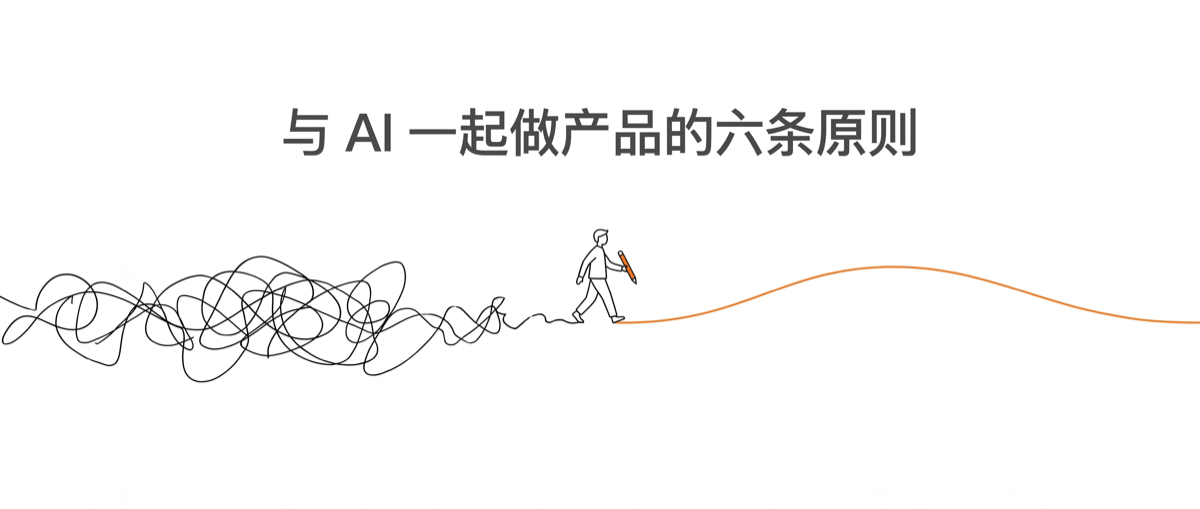
The title occupies the upper white space. Below it, a figure stands where tangled black strokes meet a smooth orange line. The approximately 21:9 original shows how a cover can hold a title and one readable action.
Author’s original fileThese files come from the author’s repository and were checked against the originals and visually inspected. They were not generated by this site. Their generic figures differ from the separate Xiao Cheng chest-dot template; they illustrate composition and meaning, rather than certifying every current proportion rule. The repository uses a custom dual license, not an unrestricted commercial stock-image license.
Hosts listed by the author
- Claude Code
- Codex
- GitHub stars
- 450
- Checked
- Categories
- Design & Video
Make the action explain the idea before choosing a rendering
Find a tension in the text: many versus few, rough versus precise, generation versus judgment. Turn it into someone doing something to an object, then decide the scale and orange emphasis. Xiao Cheng suits quiet recurring actions; use a generic figure when the meaningful object itself needs to be orange.
Pick a task and get started
Start with “Illustrate one idea”: copy the full skill directory, create brief.md, name your configured image tool, and generate at most two candidates without lettering. Establish the action and character before expanding to a cover or deck.
Use the default Xiao Cheng character for an image without text. Compare two actions and choose the one that conveys the source accurately.
Copy the complete skill directory
The author installs the skill by copying the complete repository directory into the host’s skills folder. The first path uses ~/.claude/skills/orange-line-illustration/ for Claude Code. This is a folder location, not a command. Retain the references and examples; configure an image tool separately.
Read the author’s setup guideFirst run: one paragraph, two candidates, one human choice
Download and unpack the author’s repository. Name the folder that directly contains SKILL.md orange-line-illustration, then use your file manager to place it at ~/.claude/skills/orange-line-illustration/, retaining SKILL.md, references/, examples/ and LICENSE.md. On macOS/Linux, ~ means your home directory; on Windows, locate .claude/skills under your user home. The README also lists ~/.cola/skills/ for Cola; other hosts use their own skill-directory conventions. These are folder locations, not terminal commands. In your working project, create brief.md with the source paragraph, audience, central point “Tools expand output; judgment sets the direction,” freely accessible blog use, 16:9 format, no lettering, the available image tool and a two-image limit. Ask the assistant to confirm that it can read the skill and Xiao Cheng template, then send the first task prompt. Inspect the prompts and candidates under orange-demo/. If no renderer is configured, keep the prompts and complete that tool’s setup before continuing. Judge whether the action makes sense, the chest dot is the only orange, and the files open, as well as the overall appearance.
Read the author’s directory and installation notesGive your AI this first task
These are editorial task examples. Replace the files, generation limits and output folders with your own. Listed results are expected deliverables, not images generated by this site.
Use orange-line-illustration and read brief.md in this project. The illustration is for a freely accessible blog post. Its central idea is “Tools expand output; judgment sets the direction.” Use the surrounding paragraph in the file without adding a new claim. Follow references/xiao-orange-ip.md and references/xiao-orange-prompt-template.md for Xiao Cheng: an outlined circular head, two dot eyes, no mouth, a narrow outlined rectangular body, and thin stick limbs. The character must perform the scene’s essential action. Use 16:9 landscape, thin black lines, pure white and generous empty space. Orange #F97316 appears only in the chest dot; add no caption, title or orange decorative rule. Describe two different physical actions, including who does what, spatial relationships and scale. Save both prompts to orange-demo/prompts.md. Use the configured image tool named in brief.md to render each scene once, with a limit of two images in this round. If the tool is unavailable, deliver the prompts and missing setup details without claiming images were made. Give both candidates descriptive filenames and present them together for me to choose. Do not discard candidates through AI image scoring first. Deliver the file paths, prompts and selection record, and ask me to check the action’s meaning, character shape, single chest accent and actual aspect ratio.
Check what you receive
- Two scenes and complete prompts in orange-demo/prompts.md, describing the action, layout and scale.
- With a configured renderer, at most two named candidates and a selection record. Without one, reusable prompts and a clear list of missing setup.
More about this skill
Orange Line Illustration is a skill published by Orange. It turns a claim in an article into a physical scene, using small figures, oversized objects and large areas of white. Its main design question is whether the action explains the sentence, beyond simply using thin strokes and an orange accent.
The repository describes standalone illustrations and illustrated presentations. A standalone image can be a concept or cover; a presentation starts with the source text and an approved outline, then illustrates its story scenes and assembles HTML. The three tasks below separate article images, covers and HTML talks.
No image model or renderer is bundled. An assistant that reads skill files interprets the rules, writes prompts and organizes files; a separate tool renders the images. Character design, framing and generation count can be set beforehand, while accurate lettering and final selection remain the user’s responsibility.
Sources and verification
Sources checked
Prepared from all nine Markdown files and the repository tree at commit f7e1f844. Two author images were also verified and visually inspected. We did not install the skill, call an image model or generate a presentation.